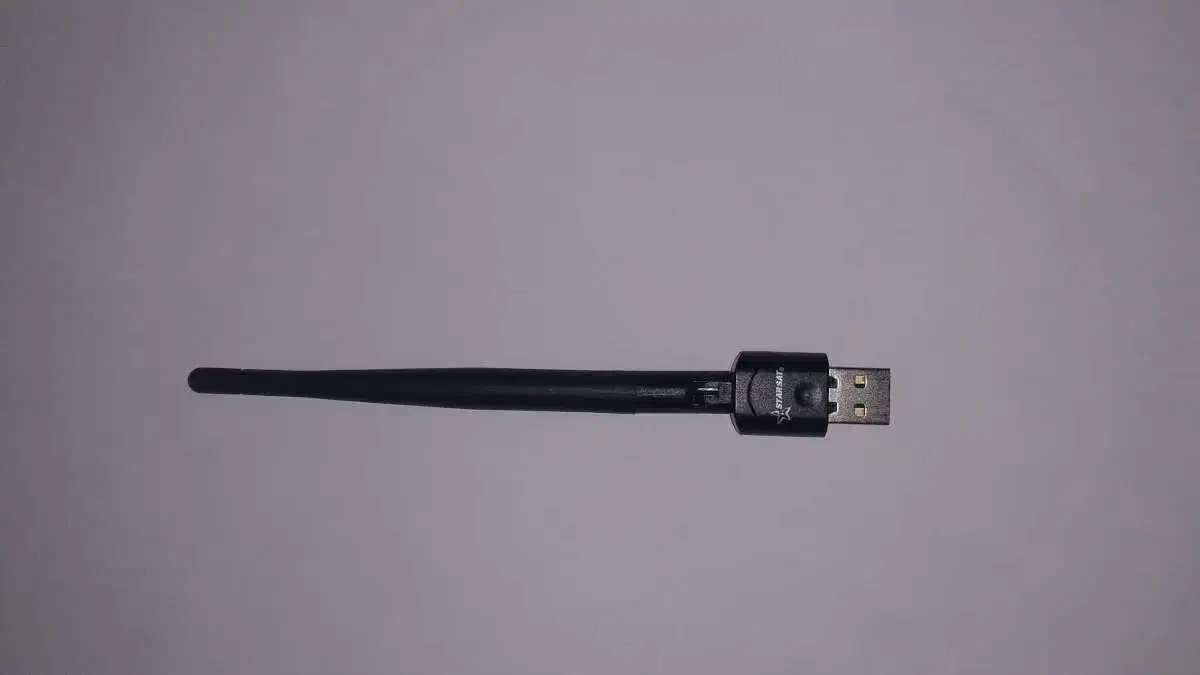
To get a MediaTek 802.11n WLAN adapter working on Alpine Linux, you’ll typically need to install firmware and drivers for the wireless chipset, and bring up the network interface using tools like iw and wpa_supplicant.
Step-by-Step Guide#
1. Identify Your Chipset#
Run the following to identify your MediaTek Wi-Fi chipset:
lspci | grep -i network
# or for USB dongles:
lsusb
Look for lines like:
MediaTek MT7601U 802.11 n WLAN Adapter2. Enable Community Repository#
Make sure the community repo is enabled in /etc/apk/repositories:
vi /etc/apk/repositoriesUncomment or add this line:
http://dl-cdn.alpinelinux.org/alpine/latest-stable/communityThen update:
apk update3. Install Required Packages#
Install drivers, firmware, and Wi-Fi tools:
apk add linux-firmware wireless-tools iw wpa_supplicant4. Check if the Driver is Loaded#
Run:
dmesg | grep mt
lsmod | grep mt
You may need one of these kernel modules:
mt7601umt76x0umt76
To load a module manually:
modprobe mt7601uCheck if the interface appears:
ip linkYou should see something like wlan0.
Connect to Wi-Fi (wpa_supplicant method)#
Create /etc/wpa_supplicant/wpa_supplicant.conf:
ctrl_interface=/var/run/wpa_supplicant
network={
    ssid="YourNetworkName"
    psk="YourPassword"
}
Then start wpa_supplicant:
wpa_supplicant -B -i wlan0 -c /etc/wpa_supplicant/wpa_supplicant.confGet an IP:
udhcpc -i wlan0Tips#
- For headless systems, use
wpa_clior configurewpa_supplicant.confmanually. - For GUI systems (with X or Wayland), you can use
networkmanagerorconnman. - Check logs via:
dmesg | tailFor Persistent Setup#
To ensure Wi-Fi connects at boot:
- Add
wpa_supplicantandudhcpcto OpenRC:
rc-update add wpa_supplicant
rc-update add networking- Ensure
wpa_supplicant.confis correctly placed and permissions are set.
Not Working?#
If it’s not working :
- Check
dmesgfor errors.sudo dmesg - Your chipset might need an out-of-tree driver (rare on Alpine).